Sorry - either this article does not exist or you haven't been given permission to view it.
Knowledgebase

If the device has already been set up, you can follow these steps to join the device to AzureAD.

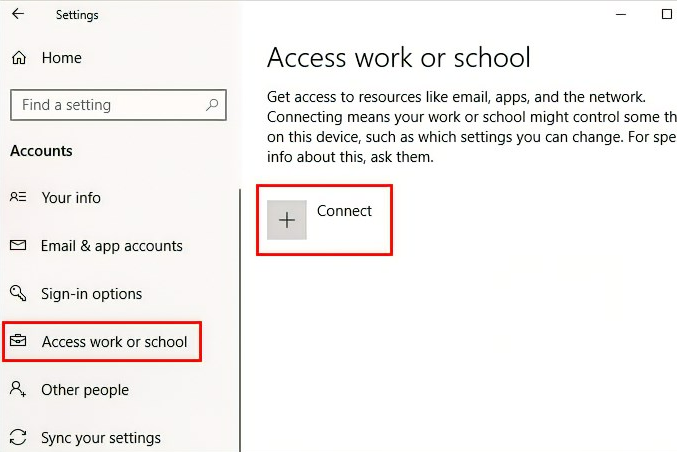
  1. Open Settings, and then select Accounts.
  2. Select Access work or school, and then select Connect.
    220065-image.png
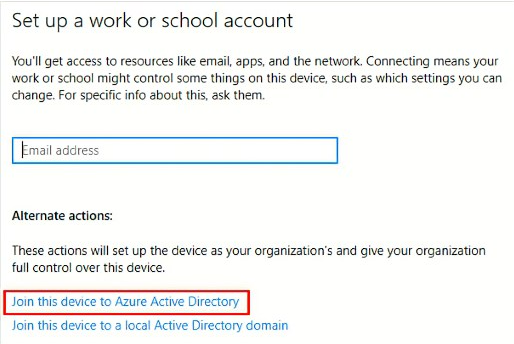
  3. On the Set up a work or school account screen, select Join this device to Azure Active Directory.
    220102-image.png
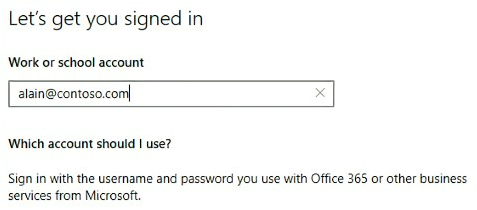
  4. On the Let's get you signed in screen, type your email address (for example, alain@Company portal .com), and then select Next.
    220083-image.png
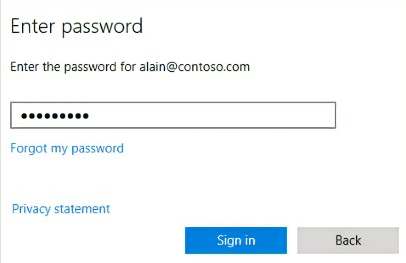
  5. On the Enter password screen, type your password, and then select Sign in.
    220050-image.png
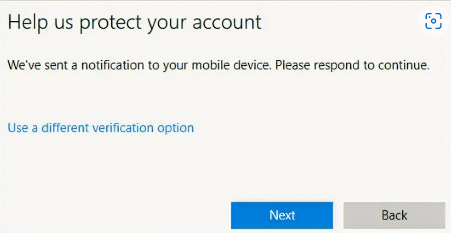
  6. On your mobile device, approve your device so it can access your account.
    220028-image.png
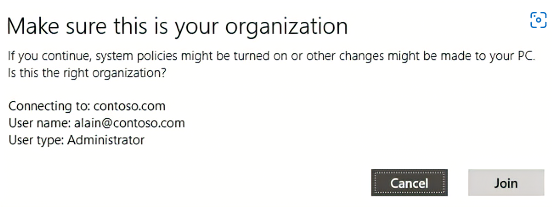
  7. On the Make sure this is your organization screen, review the information to make sure it's right, and then select Join.
    220055-image.png
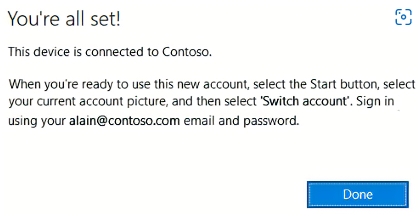
  8. On the You're all set screen, click Done.
    220066-image.png

0 0,12 * * * /usr/bin/certbot renew --post-hook "systemctl reload nginx"

Set-NetConnectionProfile


Set-NetConnectionProfile -InterfaceIndex 3 -NetworkCategory Private

Format
Record Type: TXT, Hostname: _dmarc, Value(s): v, p, rua (required)

Example:

TXT    _dmarc    v=DMARC1; p=quarantine; rua=mailto:it@redcelltechnologies.com;


Notes:
You do not have to append .domian after the _dmarc . This is done for you by the DNS provider.

Change rua email address to a customer specific address.

Switch to router

interface ethernet 1/48

    description {text}

    switchport all vlan #,#,#,# tagged

Switch to switch

interface ethernet 1/48

    description {text}

    switchport allowed vlan add 1,#,#,# tagged - Include VLAN 1

    switchport mode trunk

The following commands will be helpful if you want to hide all the WiFi networks and allow only a particular one.

You need to allow a WiFi network first, so execute the following command to do this:

netsh wlan add filter permission=allow ssid="Wireless Network Name" networktype=infrastructure

To hide all the networks except the allowed network, execute this command:

netsh wlan add filter permission=denyall networktype=infrastructure

If you want to remove the “deny all” filter or you want to remove all the network names from the blocklist, the following command will do the job:

netsh wlan delete filter permission=denyall networktype=infrastructure

In case you have forgotten the wireless network name or you just want to see the blacklist or whitelist, here is the command that you need to use:

netsh wlan show filters

Microsoft wants users to sign in with a Microsoft account, for tracking and to synchronize user settings across multiple devices.

You can bypass using a Microsoft account during the Windows 11 install process by opening a Command Prompt (Shift+F10) and typing ms-cxh:localonly

Using Rufus you can create a Windows 11 install USB drive that will automatically bypass this and other requirements.

For the current release builds of Windows (as of April 2025), you may use the OOBE/BYPASSNRO method. However, for builds 26100 and 26200 and beyond (and eventually the next release build), you must use the start ms-cxh:localonly method, which is similar but requires a different command.

Below are two methods: the first involves issuing some commands during the install / OOBE process. The second, which only works for a clean install, requires you to create a modified USB install disk using a free tool called Rufus. 

How to Install Windows 11 Without a Microsoft Account (Current Method)

For current release builds of Windows 11 (24H2), there's a simple trick for setting up Windows 11 with a local account that involves issuing a command to keep the OOBE from requiring Internet and then cutting off Internet at just the right time in the setup process. This works the same way whether you are doing a clean install of Windows 11 or following the OOBE process on a store-bought computer.

1. Follow the Windows 11 install process until you get to the "choose a country" screen.

2. Hit Shift + F10. A command prompt appears.

3. Type OOBE\BYPASSNRO to disable the Internet connection requirement.

The computer will reboot and return you to this screen.

Note: if OOBE\BYPASSNRO returns a "command not found" error, skip ahead to the next method in this how-to.

4. Hit Shift + F10 again and this time Type ipconfig /release. Then hit Enter to disable the Internet. This effectively disconnects your computer from the Internet. If you're on Ethernet, you could just disconnect the plug, but this is just as easy if not easier.

5. Close the command prompt.

6. Continue with the installation, choosing the region. keyboard and second keyboard option.

A screen saying "Let's connect you to a network" appears, warning you that you need Internet.

7. Click "I don't have Internet" to continue.

8. Click Continue with limited setup if prompted. The OOBE may skip this screen and take you straight to the next step.

A new login screen appears asking "Who's going to use this device?"

9. Enter a username you want to use for your local Windows 11 account and click Next.

10. Enter a password you would like to use and click Next. You can also leave this field blank and have no password, but that's not recommended.

11. Complete the rest of the install process as you normally would.

How to install Windows 11 with a local account (Builds 26120 and beyond)

On new preview builds of Windows (and eventually the next release version), the OOBE/BYPASSNRO command has been erased and no longer works. Instead, there's a new command called start ms-chx:localonly that does something similar. Here's how you use it.

1. Follow the Windows 11 install process until you get to the Sign in screen.

2. Hit Shift + F10. A command prompt appears.

3. Enter start ms-cxh:localonly at the command prompt.

A "Create a user for this PC" dialog window appears.

4. Enter a local username and password. If you enter no password, you'll have no password.

5. Complete the installation process and you'll be using the local account you created.

How to Create a Windows 11 Install Disk that Allows Bypassing Microsoft Accounts 

You can also create an install disk that has the "no Internet required" setting built into the setup process.

Here's how to make a Windows 11 install disk that will let you disconnect from the Internet during setup so you can create a local account instead of using a Microsoft one.

1. Download the Windows 11 ISO file for Windows 11 from Microsoft. For more detail, see our how to download a Windows 11 ISO file article.

2. Insert a USB Flash drive you want to use as an install disk if one is not already inserted. Note that this drive will be completely erased during the process and it must be at least 8GB. If you are just installing Windows in a virtual machine, you can create an ISO file instead of writing directly to a Flash drive, but we'll assume you're not doing that here.

3. Download and launch Rufus version 4.4 or higher. There is no installation process, but you may be asked to confirm permissions by Windows User Account control.

4. Select the USB drive from the menu in Rufus if it's not already selected.

5. Click Select and choose the ISO file.

6. Click Start at the bottom of the Rufus window.

A dialog box appears with a few options for bypassing Windows 11 install requirements.

7. Toggle "Remove requirement for an online Microsoft account" to on and click OK. You may also want to toggle on the other options, which include Removing the Secure Boot / TPM 2.0 and RAM requirements (disabling these hardware requirements may not work on the latest versions of Windows 11). You can also toggle on "Create a local account with username" and enter your username here and it won't need to prompt you during installation. You can also toggle on "Set regional options to the same values as this user's" and it won't prompt you for the country or keyboard.

8. Click OK if warned that Rufus will destroy all data on the USB Flash drive. It is expected to overwrite all contents of the drive.

Rufus will take a few minutes to copy files to the USB Flash drive. When it's done, you will have a bootable Flash drive. However, you still need to disable the Internet on your computer.

9. Go through setup until you reach the "choose a country" screen.

10. Hit Shift + F10 to enter the command prompt.

11. Type ipconfig /release to kill the Internet connection.

12. Close the command prompt.

13. Click "I don't have Internet" when prompted.

14. Enter your username and password when prompted. Note that you can leave the password field blank if you want to boot directly to the desktop with no password required.

https://www.youtube.com/watch?v=RyaJ8eNoYpk&ab_channel=ValiantTechnology

Check the status of the cluster

#pcs status

Put a node into standby

#pcs node standby {host}

Take a node out of standby

#pcs node unstandby {host}

Promote node to primary

Run batch file and wait for it to complete. It will take some time, but it works!

Download batch file and save in c:/Temp

Open Command prompt with Administrative premissions

Type

cd c:/temp

hit enter

then type Reset_Reregister_Windows_Update_Components.bat (for windows 10) or

Reset_Reregister_Windows_Update_Components_for_Windows11.bat (for Windows 11)

hit enter

Let it compete and then reboot the computer. Voila Windows Update works!!

How to fix Sysprep error 0x80073cf2

Get-AppxPackage -AllUsers | Where-Object { $_.PackageFullName -like ‘<PackageFullName>’ } | Format-List -Property Name, PackageFullName, PackageUserInformation, InstallLocation, SignatureKind

Replace <PackageFullName> with the name observed in the setupact.log file, for example, Microsoft.MicrosoftEdge, and then don’t forget to press Enter.

Get-Appxpackage <PackageFullName> -AllUsers | Remove-Appxpackage -AllUsers

Replace <PackageFullName> with "Package Name" with the package causing the error

For Windows:

Run the attached script from PowerShell in Administrative context. Save in C:\Temp

Type:

cd C:\Temp

UninstallLabTechAgent.ps1

Then you can go into Add Remove Programs and uninstall the Screen Connect Applications and reboot the PC.

For MacOS:

  1. Open Finder > click Go to folder > opt.
  2. Write down specific screenconnect name
  3. Remove all files containing ConnectWise Control or ScreenConnect from the Downloads folder on the Mac.
  4. Open the Terminal, then run the commands indicated below, one at a time.
  5. Reboot the Mac.
  • sudo rm -r /opt/connectwisecontrol*
    sudo rm -r /Library/LaunchDaemons/connectwisecontrol*
    sudo rm -r /Library/LaunchAgents/connectwisecontrol*
    sudo rm -r /opt/screenconnect*
    sudo rm -r /Library/LaunchDaemons/screenconnect*
    sudo rm -r /Library/LaunchAgents/screenconnect*

Check status

reagentc /info

Disable

reagentc /disable

As of Windows 24H2, BitLocker now auto encrypts drives in VM. Here's how to work around this.

Error "Prepare Capture Failed #sysprep"

Log file at c:\windows\system32\sysprep\panther\setuperr.log contains:

SYSPRP BitLocker-Sysprep: BitLocker is on for the OS volume. Turn BitLocker off to run Sysprep. (0x80310039)

WORKAROUND:

To disable BitLocker - open a command prompt with admin rights and run the following command.

manage-bde -off C:

It may take a few minutes to decrypt. You can view the status by running

manage-bde -status

Once the drive is fully decrypted, reboot and run Sysprep again.